With the BlueSpiceQrCode extension, users can quickly open a wiki page on their mobile device by simply scanning the QR code.
A QR code (Quick Response Code) is a technology originally developed for Toyota's logistics needs. Today, QR codes are implemented in many different products. The QR code for a wiki page can be attached to a product or included on a printed page. Scanning the QR code on the product or page takes users directly to the wiki page.
Saving a QR code
- Click the Share icon in the page tools and select QR code.
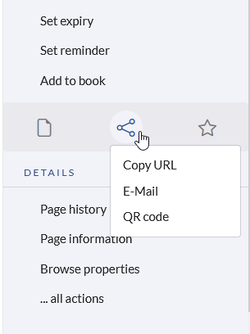
open the page QR code - Right-click the displayed QR code.

- Select Save image as to save the QR code locally.
The image can now be printed for various purposes.
Content Droplet QR code
The QR code can also be displayed directly anywhere in the wiki. When a wiki page is printed, the QR code is printed along with it.
To insert the Content droplet QR code on a page:
- Open the menu Content droplets.
- Filter for the Content droplet QR code.
- Click Insert. An inspector menu opens.

Enter the necessary information in the Inspector menu:
| Field | Description |
|---|---|
| Page | Page name to which the QR code links. The toggle switch  in the page name field allows you to alternatively specify a variable or parser function which will be used to generate the page name. (e.g., in the page name field allows you to alternatively specify a variable or parser function which will be used to generate the page name. (e.g., {{FULLPAGENAME}} ). v5.2.2+ |
| Parameter | Allows you to pass a URL parameter (optional). |
| Description | The description is displayed directly above the QR code. (Optional)
WCAG: The alternative text for the image is generated automatically. |
| Size | Allows the QR code to be displayed in small, medium, or large size. |
Example output:



