No edit summary |
No edit summary Tag: 2017 source edit |
||
| Line 5: | Line 5: | ||
==Setting a reminder== | ==Setting a reminder== | ||
To create a reminder | To create a reminder: | ||
A dialog window opens. | # '''Click''' ''Set reminder'' in the page tools. A dialog window opens. [[File:Manual:seitenwerkzeuge-EN.png|alt=Page tools actions with "Set reminder" action|center|thumb|286x286px|Page tools]] | ||
[[File:Manual:reminder-dialog-EN.png|alt=Reminder dialog | # '''Enter''' the reminder data. [[File:Manual:reminder-dialog-EN.png|alt=Reminder dialog with an example reminder data for Max Mustermann|center|thumb|350x350px|Reminder dialog window]] | ||
# '''Click''' ''Done''. | |||
==My reminders== | ==My reminders== | ||
To manage your own reminders: | |||
# | # '''Open''' your user menu. | ||
# | # '''Select''' ''Reminders'' form the ''Personal Tools'' menu.[[File:Manual:reminder-usermenu-EN.png|alt=User menu with highlighted "Reminders" menu item.|center|thumb|550x550px|User menu]] | ||
# '''Edit''' or '''delete''' your reminders by clicking on the edit or delete icons at the end of each reminder.[[File:Manual:reminder-myreminders-en.png|alt=Special page "My reminders" with one reminder entry|center|thumb|650x650px|My reminders]] | |||
[[File:Manual:reminder-usermenu-EN.png|alt=User menu|center|thumb|550x550px|User menu]] | |||
[[File:Manual:reminder-myreminders-en.png|alt=My reminders|center|thumb|650x650px|My reminders]] | |||
==Managing all wiki reminders== | ==Managing all wiki reminders== | ||
The Special:Reminder page is available to wiki administrators. It displays a list of all reminders for all sites and all users. Wiki admins can delete reminders here or edit the due date and other details. Users in the admin role can theoretically create reminders for other users. This ability should be used with caution, however, as users may not expect others to create reminders on their behalf. | The Special:Reminder page is available to wiki administrators. It displays a list of all reminders for all sites and all users. Wiki admins can delete reminders here or edit the due date and other details. Users in the admin role can theoretically create reminders for other users. This ability should be used with caution, however, as users may not expect others to create reminders on their behalf. | ||
== | == Notifications == | ||
By default, users receive a notification in the wiki and via email | By default, users receive a notification in the wiki and via email 6 days before and on the due date. This behavior can be customized in the [[Manual:Preferences|user preferences]]. | ||
=== User preferences === | |||
{{#dpl:title=Manual:Preferences|include=#Editing}} | |||
<br />{{Translation}} | |||
[[Category:Quality]] | [[Category:Quality]] | ||
Revision as of 08:07, 2 December 2025
The extension Reminder allows users to keep track of pages by creating reminders for a particular date. By default, the wiki sends out a notification one week before and on the day that was set in the reminder.
Setting a reminder
To create a reminder:
- Click Set reminder in the page tools. A dialog window opens.

Page tools - Enter the reminder data.
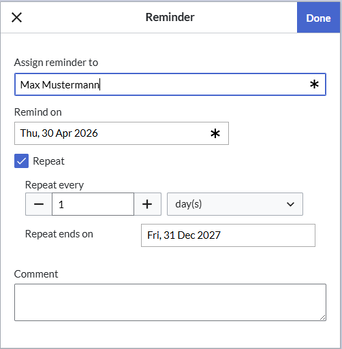
Reminder dialog window - Click Done.


My reminders
To manage your own reminders:
- Open your user menu.
- Select Reminders form the Personal Tools menu.

User menu - Edit or delete your reminders by clicking on the edit or delete icons at the end of each reminder.

My reminders


Managing all wiki reminders
The Special:Reminder page is available to wiki administrators. It displays a list of all reminders for all sites and all users. Wiki admins can delete reminders here or edit the due date and other details. Users in the admin role can theoretically create reminders for other users. This ability should be used with caution, however, as users may not expect others to create reminders on their behalf.
Notifications
By default, users receive a notification in the wiki and via email 6 days before and on the due date. This behavior can be customized in the user preferences.
User preferences
General options
- Enable section editing by right clicking on section titles: Right-clicking a section title with the mouse sets the page in edit mode. The specified section can be edited immediately.
- Editing pages by double clicking (JavaScript): Double-clicking on the page sets the page in edit mode. The double-click needs to be inside the text area of the page. Clicking in the title section of a page will not set the page into edit mode.
- Enable the Paragraph-based Edit Conflict Interface to resolve edit conflicts: Allows section-based merging of differences which improves the process for solving edit conflicts between users. If this setting is disabled: Users will see the source code of the latest version, a diff view between the latest and the own version, and a source diting window to manually work on the user's unsaved version.
Editor
- Edit area font style: Displays source code in monospace, serif, or sans-serif font.
- Mark all edits minor by default: This automatically sets the minor flag in the save dialog. It can be selected or deselected in the save dialog on the page itself:
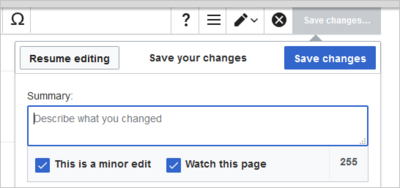
marking a minor edit

- Prompt me when entering a blank edit summary: Displays a text message when you click Save changes reminding you to enter a summary description. If you do not enter a description after that, the page will save without the summary the next time you click Save changes.
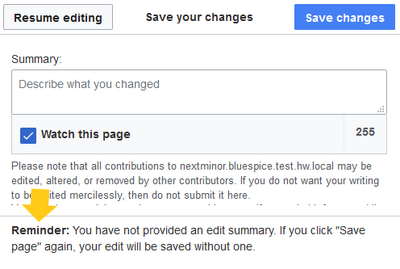
edit summary prompt - Warn me when I leave an edit page with unsaved changes: When you reload or leave a page with unsaved edits, a warning message is displayed. You can confirm to leave the page or stay on the page and save your changes.
- Enable the visual editor: Enables the extension VisualEditor in visual editing mode. Disabling is not recommended, as this reverts the editor back to a simpler MediaWiki editor.

Preview
These preview settings are only applied if you have temporarily disabled VisualEditor and the edit text area is on the same page as the page preview. In BlueSpice 3.1+ you can generally ignore these settings.
- Show preview on first edit: The preview of the article is displayed when you click on "Edit"
- Show preview before edit box: If this option is deactivated, the preview will be shown under the edit form
- Show previews without reloading the page
Reminder
- Default reminder period: Prefills the date field for reminders with current date + x days specified here.
- Set reminder on page creation: When you create a new page, a reminder for that page is automatically created based on the default reminder period.
- Do not create reminder for the following namespaces: Excludes namespaces from the automatic reminder if "set reminder on page creation" is activated.
Accessibility
- Enable colorblind-friendly scheme: Changes the color scheme for extension CodeMirror. See mediawiki.org documentation.



